Import a messy customer CSV into Filament, and fix it before anything is saved
You are moving a company off its old customer system. The old system can export a CSV, and that is all it can do. The headers are its own ("Client ID", "Mail", "Mobile", "Membership level"), and years of hand-typed data have left a few surprises: an email without an @, a customer with no name, the same customer exported twice.
Filament's import action can read the file. But you choose the columns in a list, press Import, and find out about the bad rows afterwards, in a CSV of failed rows. Then you fix that file and import again, hoping you did not create half of the customers twice.
This article shows the same move with Warp Import: every row is checked before anything is written, the problems are shown next to the rows, and you fix the cells right there. All pictures are from the live demo.
The scene: the export from the old system
This is the file. Five customers, six columns, and three rows with problems.
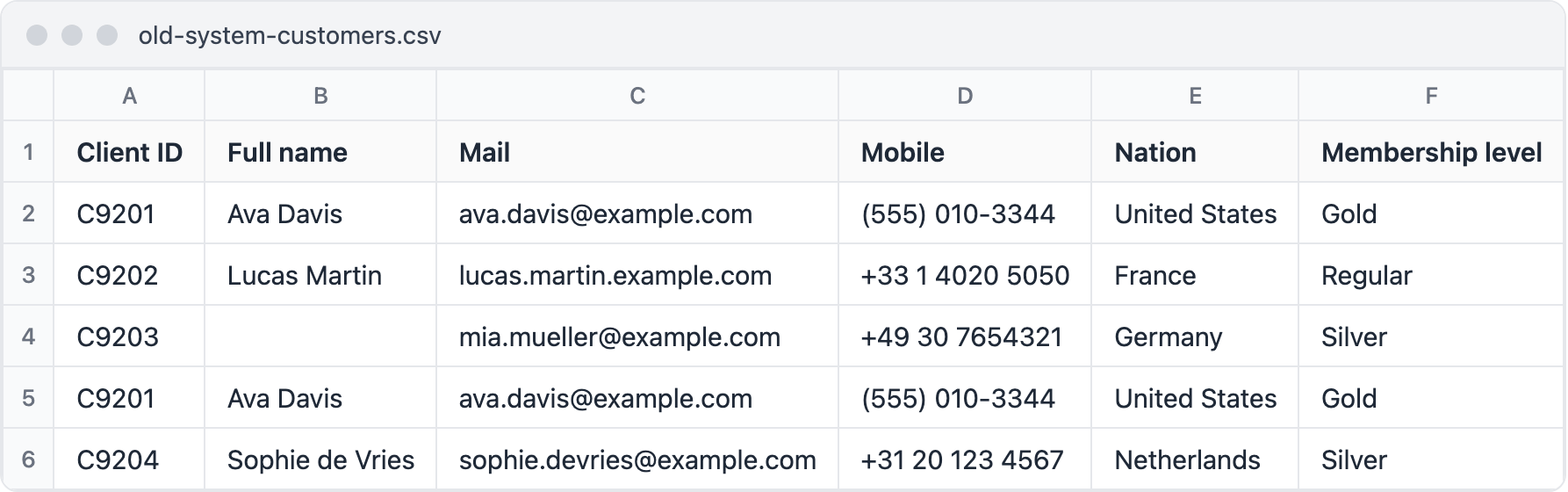
old-system-customers.csv. Row 3 has no @ in the email, row 4 has no name, and row 5 is row 2 again.Step 1: swap the import action
The importer is a normal Filament importer. Keep it as it is. On the list page, use WarpImportAction in place of Filament's ImportAction:
use Qalainau\FilamentWarpImport\Actions\WarpImportAction;

protected function getHeaderActions(): array
{
    return [
        WarpImportAction::make()
            ->importer(CustomerImporter::class)
            ->aiSuggestions(),
    ];
}
The importer's columns and rules decide what a valid row is, exactly as in Filament:
public static function getColumns(): array
{
    return [
        ImportColumn::make('code')->requiredMapping()
            ->rules(['required', 'max:16'])->guess(['code', 'customer code']),
        ImportColumn::make('name')->requiredMappingForNewRecordsOnly()
            ->rules(['required', 'max:255'])->guess(['name']),
        ImportColumn::make('email')
            ->rules(['nullable', 'email', 'max:255'])->guess(['email', 'e-mail']),
        // phone, country and rank in the same way
    ];
}

public function resolveRecord(): Customer
{
    return Customer::firstOrNew(['code' => $this->data['code']]);
}
Step 2: match the columns
Press "Import customers" and drop the file in. The wizard has four steps: File, Columns, Review, Import. "Full name" is matched to Name by itself. "Client ID", "Mail" and "Mobile" mean nothing to it, so Code, Email and Phone stay on "Do not import", and Code is marked as required.
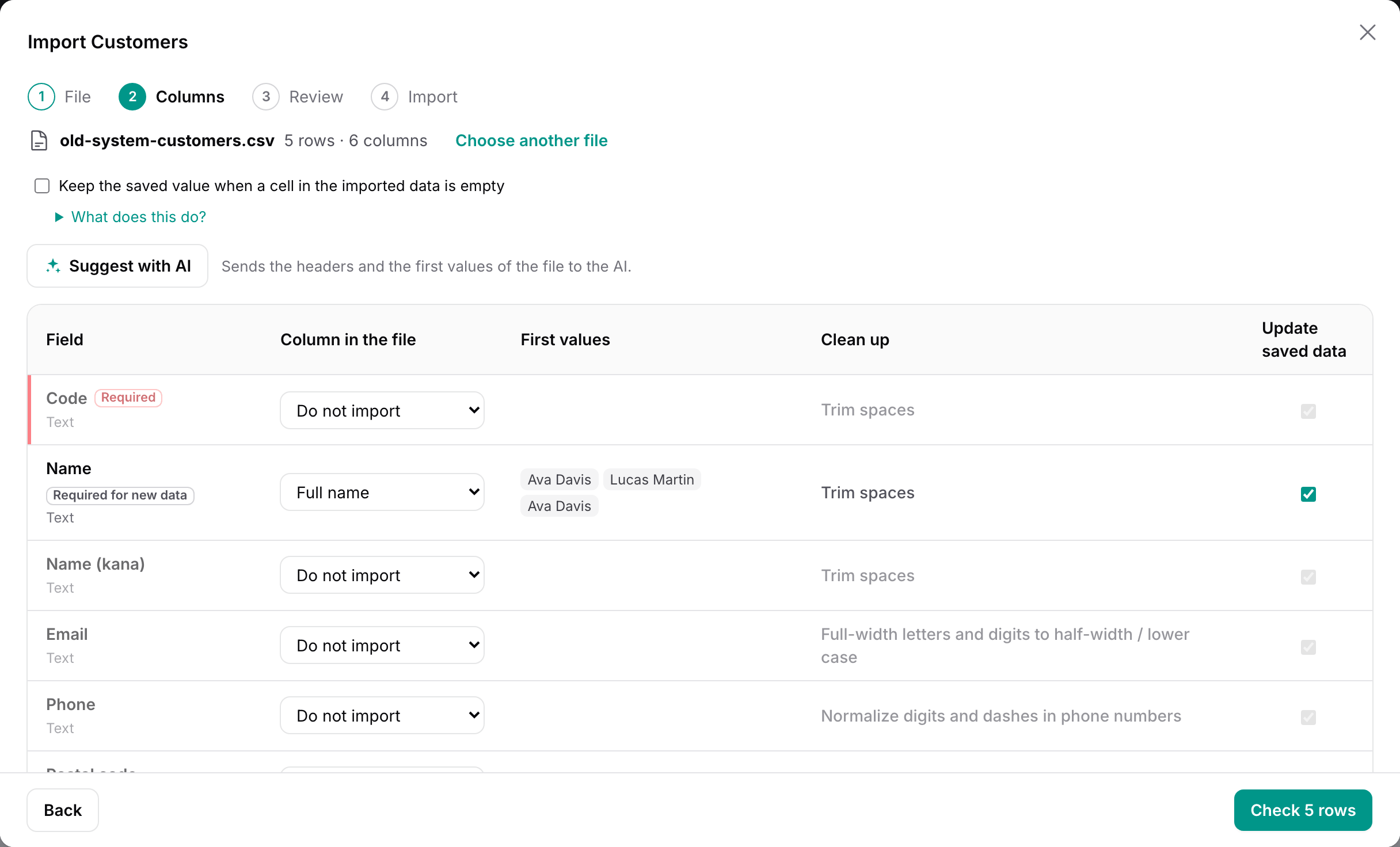
You can pick each header from the list. Or press "Suggest with AI": Claude gets the fields that are not matched yet and the unused headers, with up to three values from each, and fills in the gaps. Each answer gets an "AI" badge until you change it.
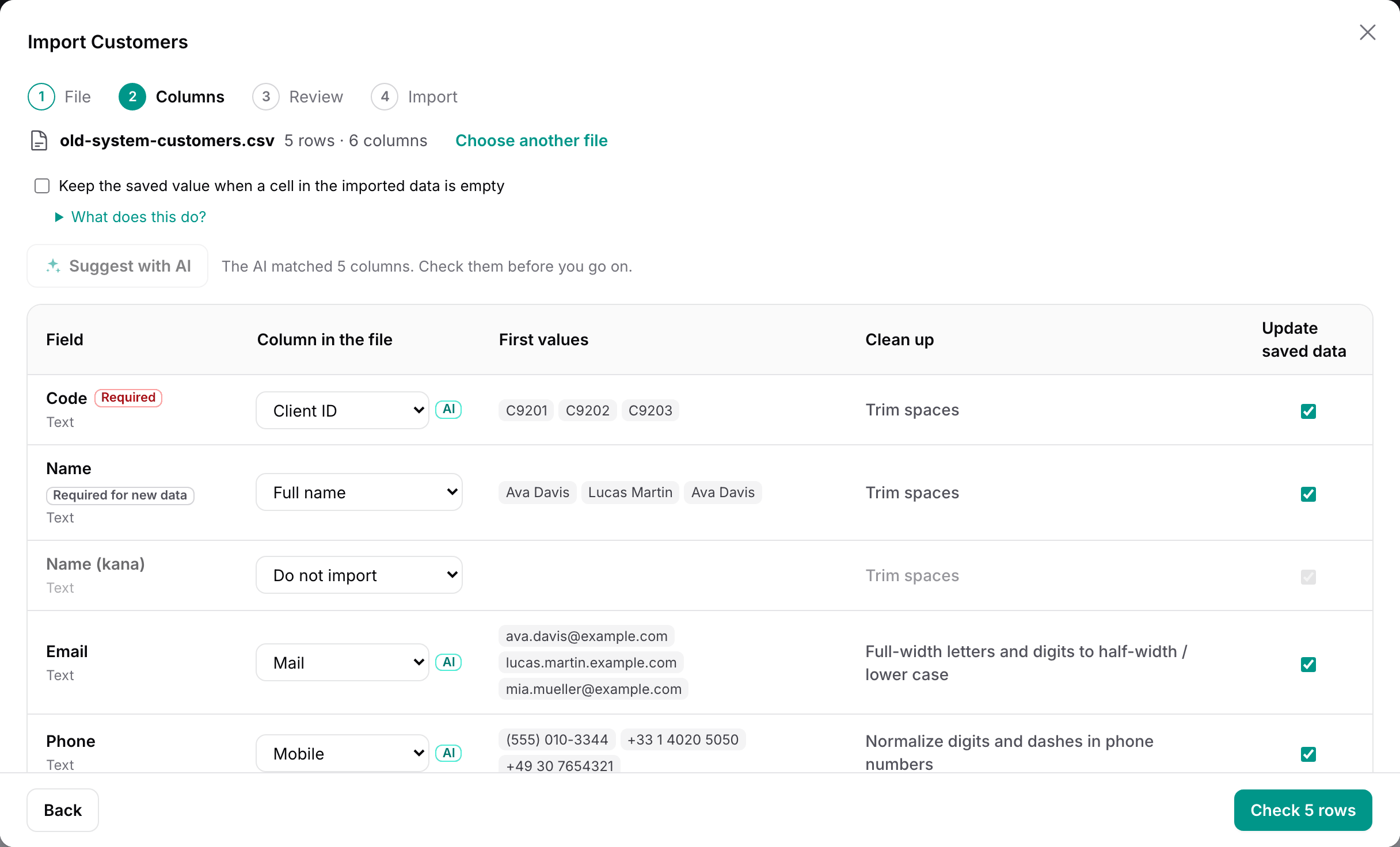
Nothing is imported on the AI's word. Its answers only fill fields that are still "Do not import", and every row still goes through the review below. (The demo has no API key, so a small fixed list answers in place of Claude.)
Step 3: see every problem before importing
"Check 5 rows" runs each row through your importer as Filament would (resolveRecord(), the rules, fillRecord()) and stops right before saveRecord(). It all happens in a transaction that is rolled back, so nothing is written yet.
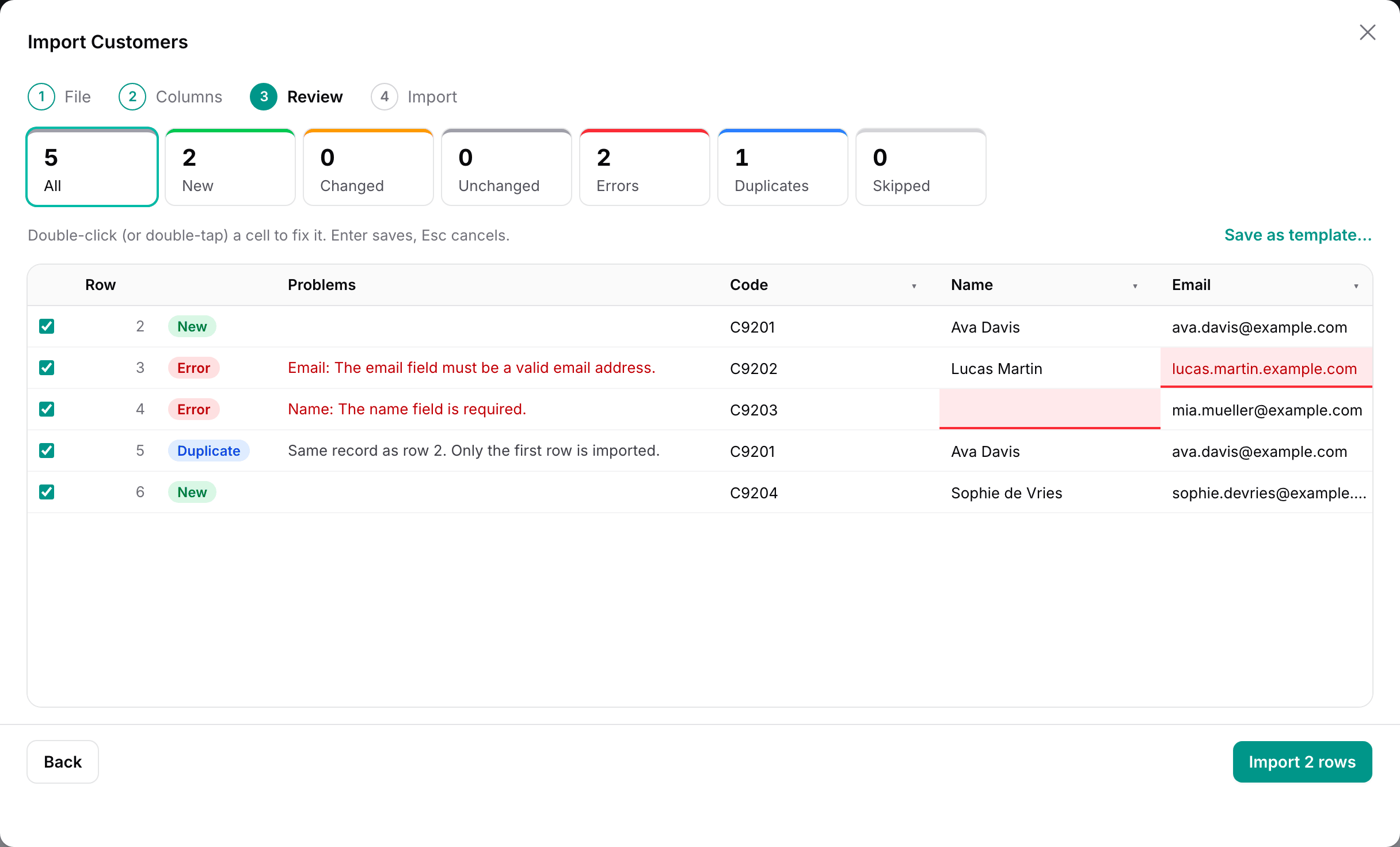
- Error: a rule failed. The message is Laravel's, and the cell is marked.
- Duplicate: an earlier row points at the same record. Only the first one is imported, so the customer is not created twice.
- Changed records (when a customer is already in your app) show the old value struck through next to the new one.
Numbers, dates and yes/no values are checked before your rules, too. Filament reads abc in a number column as 0. Warp Import reports it as an error.
Step 4: fix the cells, then import
Double-click a red cell, type the right value, and press Enter. The row is checked again at once.
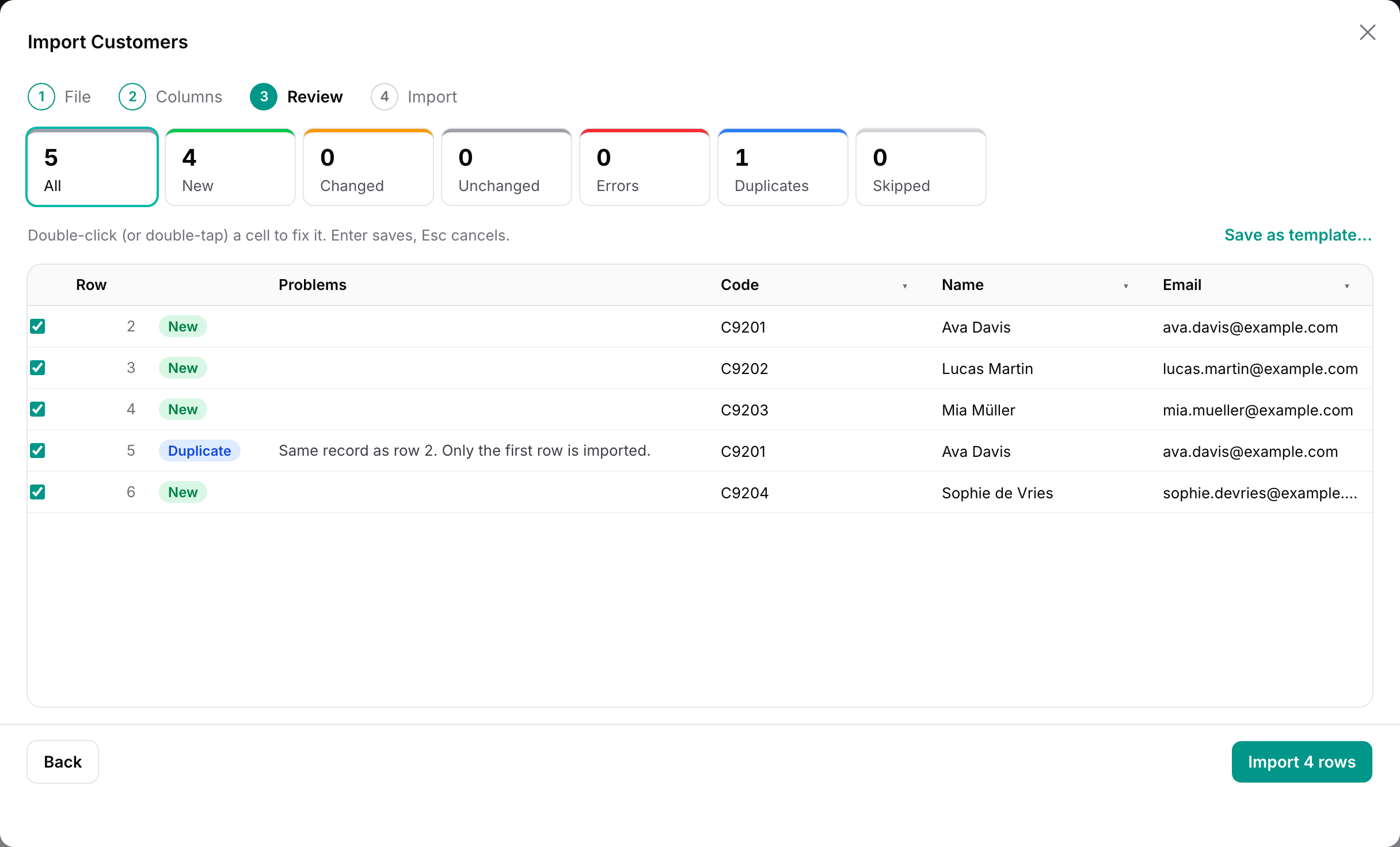
The import writes the rows with your importer, the same steps as Filament, hooks included. A row that fails while writing is rolled back on its own and listed. The others are written.
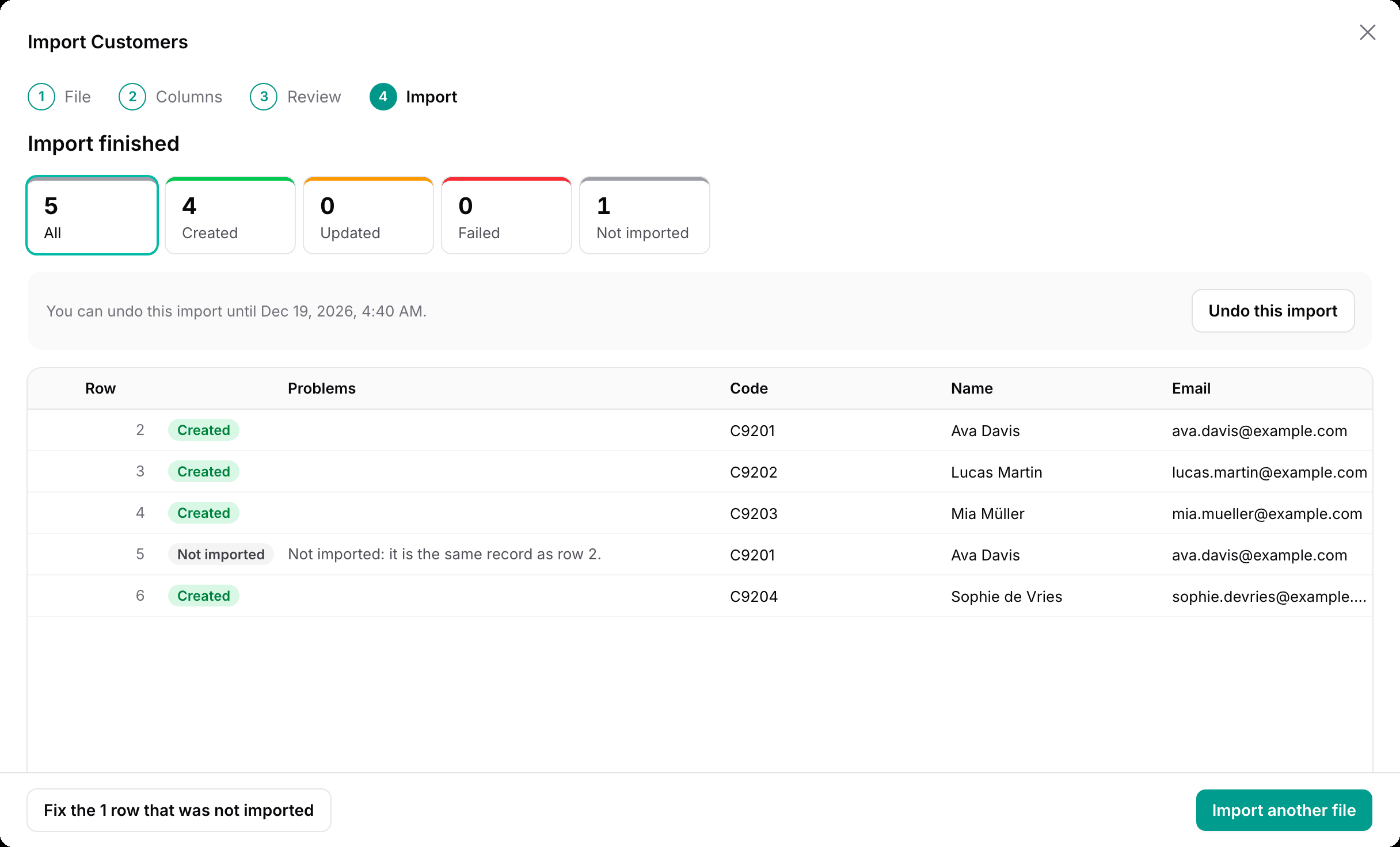
If something still looks wrong, "Undo this import" deletes what the import created and writes back the old values of what it changed, for 30 days by default. A record someone edited after the import is left alone.
Next month's file
When the same export arrives again, "Save as template…" in the review keeps the column matching and the clean-up, so the next file with the same headers needs no matching at all. Files that arrive on a schedule can be imported by themselves.
Other scenes
- Supplier price lists in Excel, with prices like
$1,200and headers that change every season. - Switching CRM or accounting tools: customers and their orders, with orders and lines on separate sheets in one file.
- Files from other countries: other separators, decimal commas and Shift_JIS encoded CSVs from Japanese Excel.
- Records missing from the file: find customers that are in your app but no longer in the export.
Limits worth knowing
.xls(Excel 97–2003) is not supported. Save as.xlsxor CSV. Excel formulas come in as their last calculated values.- Undo does not detach records attached with
belongsToMany, and does not undo side effects of your hooks (mail, API calls). - Hooks that act outside the database also run while checking. Keep mail and API calls in
afterSave(), which does not run during the review. - With
aiSuggestions(), headers and up to three sample values per column are sent to Anthropic when the user presses the button, never on their own. Turn samples off, or leave the feature off, for data that must not leave your servers.
Try it
Open the customers page in the demo and press "Import customers". "Sample file" gives you a CSV to start with. Break a few cells in it before you import, and fix them in the review. No sign-up, and the data is reset every hour.