Paste an Excel order into a Filament repeater

A customer emails their order as a spreadsheet: product, quantity, unit price, one line per product, 120 lines. Someone on your team now opens the order form in your Filament panel, clicks "Add to items", picks the product, types the quantity, types the price, and does that 120 times.
In a native Filament repeater there is no faster way. Paste the copied cells into a field and the browser puts all of the text into that one field.
This article shows how the same form works with Warp Repeater: copy the cells in Excel, click one field, paste, and the lines are filled in. Every picture below is taken from the live demo, so you can try each step yourself.
The scene: an order that already lives in a spreadsheet
This is the customer's file. The columns are in the same order as the columns of the order form: product, description, quantity, unit price, taxable.
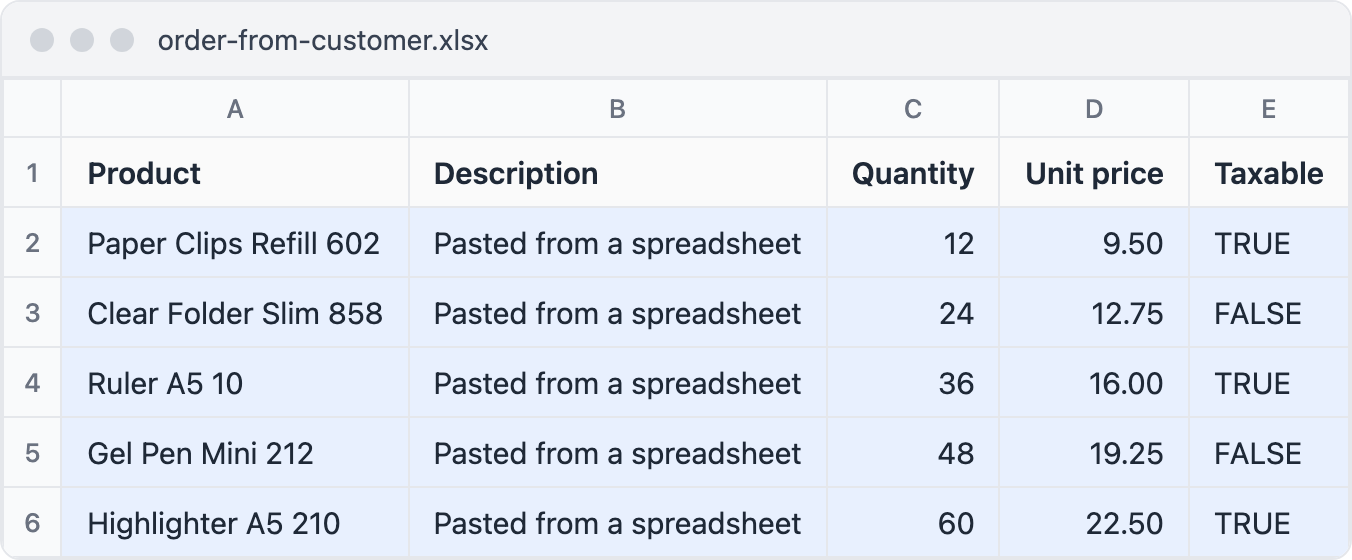
It works the same way with Excel, Numbers and Google Sheets: all of them copy cells as tab-separated text.
Step 1: one method on the repeater you already have
The order form already has a table repeater. Two methods are added: warp() draws the lines on a canvas (so 1,000 lines stay fast), and warpSpreadsheet() adds the spreadsheet keys, pasting included.
use Filament\Forms\Components\Repeater;
use Filament\Forms\Components\Repeater\TableColumn;
use Filament\Forms\Components\Select;
use Filament\Forms\Components\TextInput;
use Filament\Forms\Components\Toggle;

Repeater::make('items')
    ->table([
        TableColumn::make('Product')->markAsRequired(),
        TableColumn::make('Description'),
        TableColumn::make('Quantity')->markAsRequired(),
        TableColumn::make('Unit price')->markAsRequired(),
        TableColumn::make('Taxable'),
    ])
    ->schema([
        Select::make('product_id')->options(Product::options())->required(),
        TextInput::make('description')->maxLength(80),
        TextInput::make('quantity')->numeric()->minValue(1)->required(),
        TextInput::make('unit_price')->numeric()->prefix('$')->required(),
        Toggle::make('taxable'),
    ])
    ->warp()
    ->warpSpreadsheet()
    ->maxItems(200);
The schema, the validation and the saving are untouched. If you remove the two lines, the form is the native repeater again.
Step 2: click the first field the lines should go to
Click "Add to items" for an empty line, then click its Product field. The pasted cells fill the fields to the right and below the field you clicked, so the first column of the copy lands here.
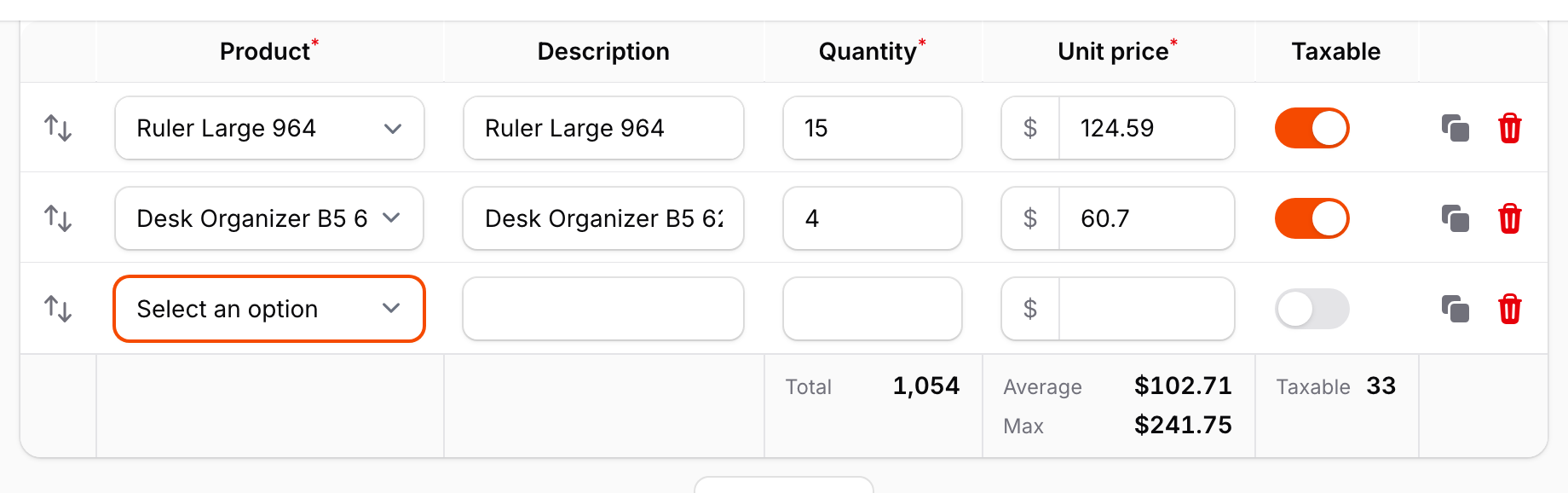
Step 3: paste
Press Ctrl/Cmd+V. The five lines are filled in, and four lines are added because only one was there. With 120 lines, 119 are added.
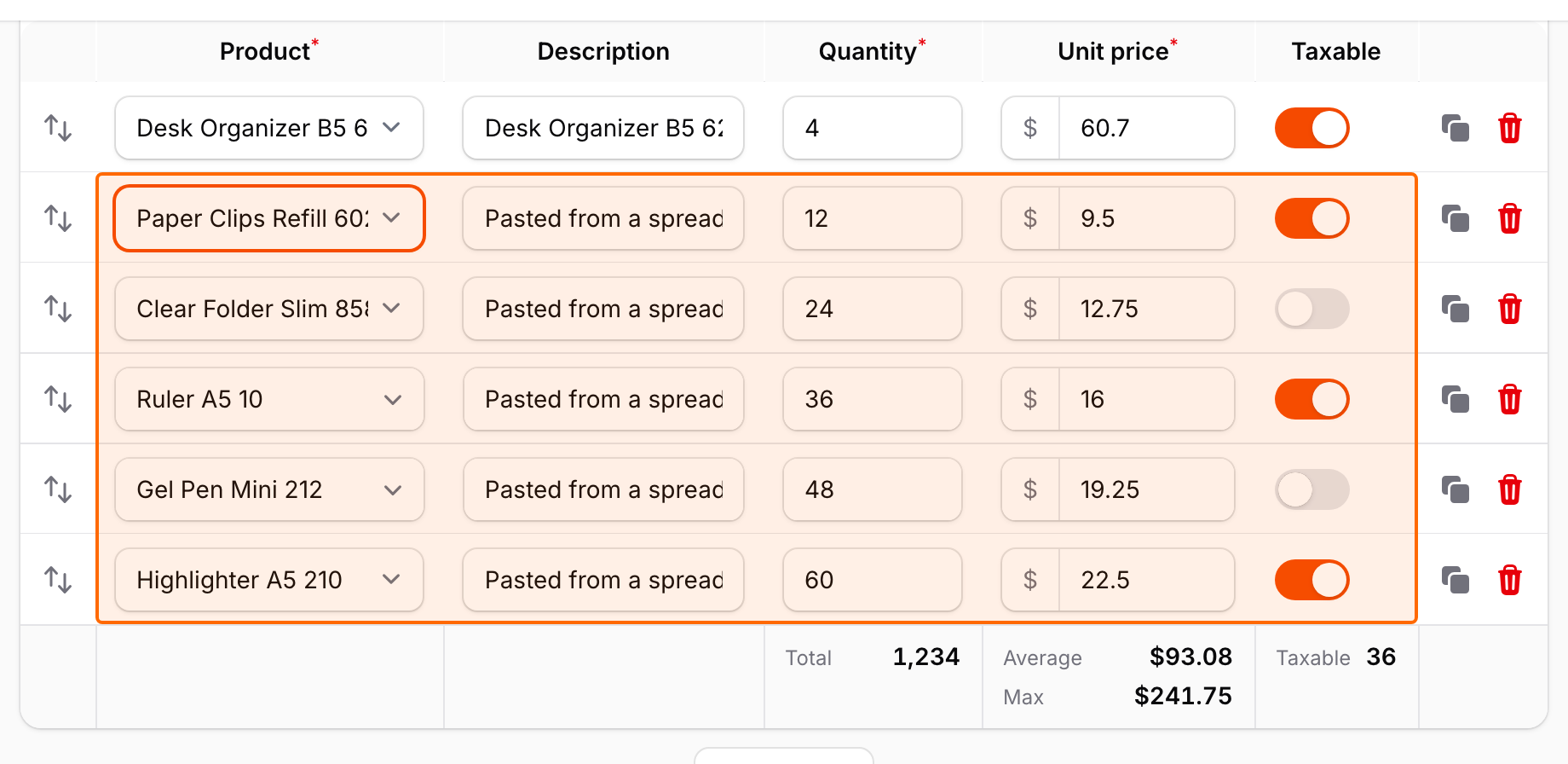
Look at what happened to each column:
- Product is a select. The spreadsheet has the product names, and the select stores the product ID. The name is matched against the options (any case), so the right product is picked. A name that is not an option is skipped, and the field keeps its old value.
- Unit price is a number. A cell such as
$1,250.50is pasted as1250.50: thousands separators, currency symbols and units are dropped. - Taxable is a toggle.
TRUE,1,yes,y,on,xand✓turn it on. - The totals under the table (
warpSummary()) are recalculated, because every pasted field runs itsafterStateUpdated()hooks, as if it was typed.
Nothing is saved yet. Your team checks the lines, and the order is saved with the form's Save button, with the usual validation.
When the customer sends SKUs instead of names
Customers' files often have product codes, not names. If the product select is a searchable relationship() select, add the code to its search columns:
Select::make('product_id')
    ->relationship('product', 'name')
    ->searchable(['name', 'sku'])
Now a column of SKUs pastes too. The code must belong to exactly one product among the select's search results, with the same query, tenant and modifyQueryUsing() as the select, so a pasted code never picks a product of another tenant.
When a field fills other fields
If picking a product fills its price in your form (an afterStateUpdated() on the product select), that still happens on paste, line by line. Pasting 400 lines into a field whose hook runs two queries takes about 2.5 seconds on the server.
Step 4: fix a column in one go with fill down
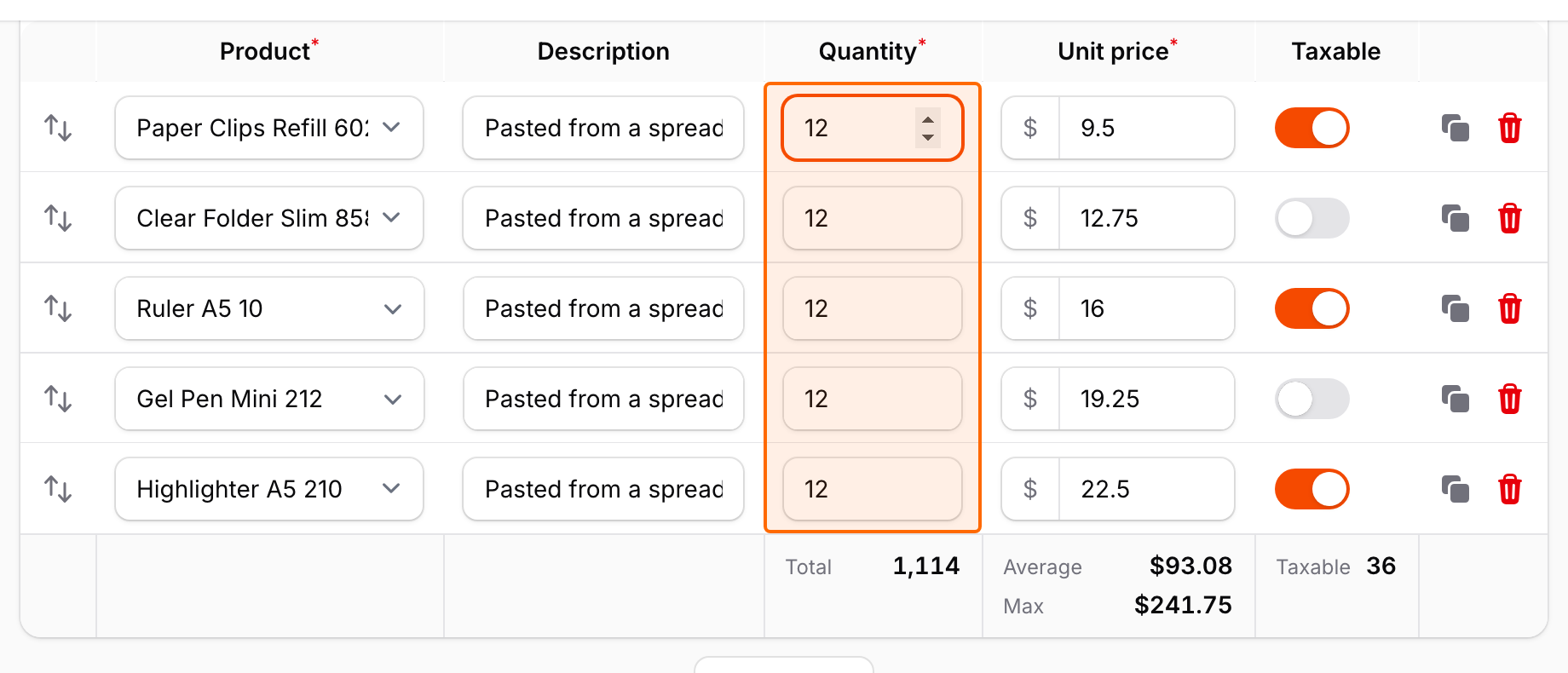
The customer calls: "make every quantity 12". Click the first quantity, then Shift+click the last one to select the range.
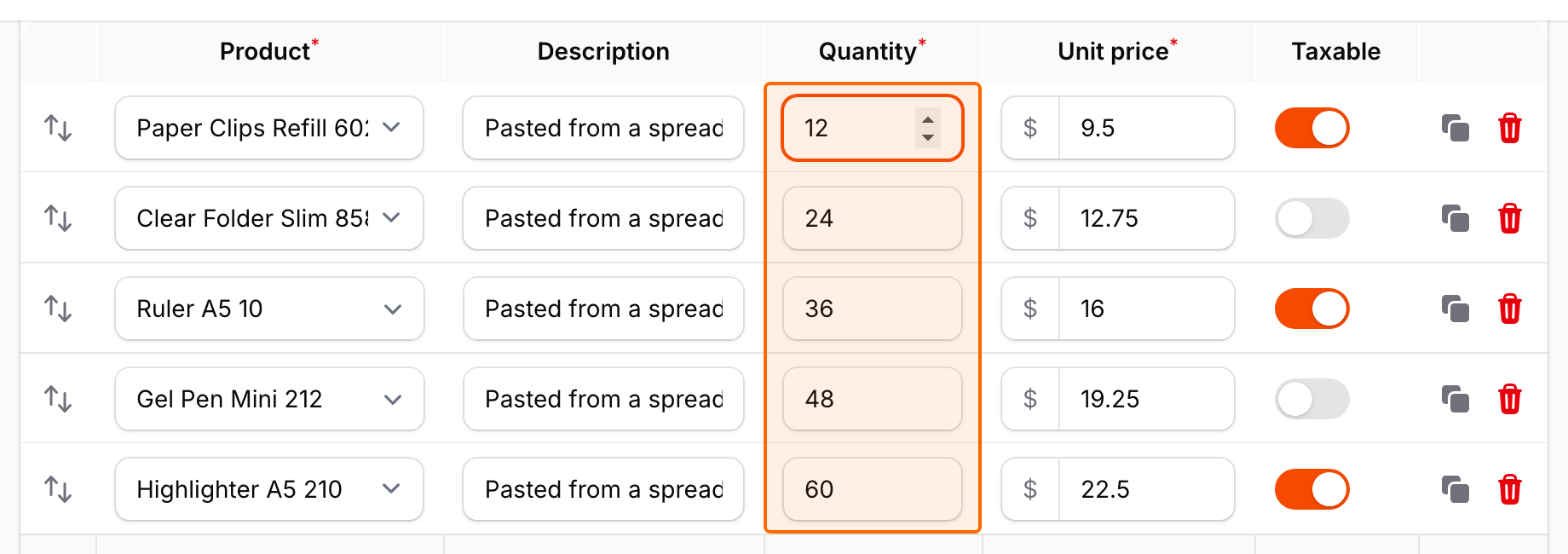
Press Ctrl/Cmd+D. The first value is copied to every line of the range, and the total follows.
The rest of the keys work like a spreadsheet too: Enter and ↓ move down a column, and Ctrl/Cmd+C copies a selected range back to the spreadsheet (selects as their labels, toggles as TRUE / FALSE, so they paste back as they were).
Where else this helps
- Purchase orders from a supplier's price list: copy SKU, quantity and price.
- Stock counts done on a tablet spreadsheet: paste the counted quantities into an adjustment form.
- Quotes that sales prepared in Excel before the customer said yes.
- Migrating line items from an old system that only exports to CSV.
Limits worth knowing
- A paste adds lines up to
maxItems(), and at most 1,000 lines per paste. - Disabled, read-only and hidden fields are skipped, and the paste only writes to fields the user could type into.
- Pasting runs on the server as one Filament action on the repeater, and only while
warpSpreadsheet()is on and the repeater is not disabled.
Try it
Open the Spreadsheet editing demo. "Copy sample rows" puts five lines on your clipboard and "Copy 150 rows" a long order: click a Product field near the end and paste. "Compare with native" opens the same form with Filament's own repeater. No sign-up is needed, and the data is reset every hour.